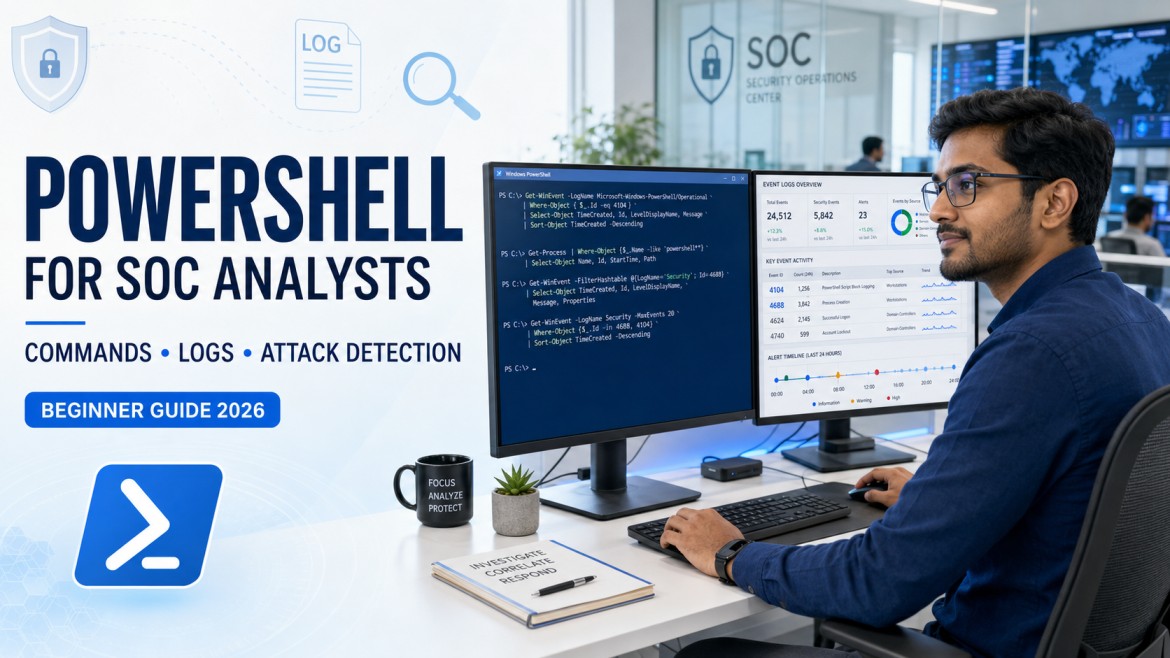
Turn PowerShell Activity into Evidence, Context and Action
PowerShell is both an essential administration tool and an important source of security telemetry. This beginner-friendly guide shows SOC analysts how to use it safely for investigation, understand the logs it produces and detect suspicious activity without treating every command as an attack.
What Is PowerShell?
PowerShell is Microsoft’s task-automation environment. It combines a command-line shell, a scripting language and a configuration framework. Unlike traditional shells that mainly pass plain text between commands, PowerShell works with structured .NET objects. This makes it easy to filter, sort, select, export and correlate system information.
PowerShell runs on Windows, Linux and macOS. In a Windows SOC, analysts commonly encounter powershell.exe, which usually represents Windows PowerShell 5.1, and pwsh.exe, which represents modern PowerShell 7. Both can be used for legitimate administration, security automation and incident response.
PowerShell is not malicious by itself. Administrators use it to manage users, services, cloud resources and endpoints. Security teams use it to collect evidence and automate repetitive tasks. At the same time, adversaries may abuse an already trusted interpreter to run commands, download content, change configuration or hide activity. MITRE ATT&CK tracks this behavior as Command and Scripting Interpreter: PowerShell (T1059.001).
Why SOC Analysts Should Learn PowerShell
A SOC analyst does not need to become a full-time PowerShell developer. However, basic fluency can make endpoint investigations faster and more accurate. It helps analysts answer questions such as:
- Which processes are running, who owns them and when did they start?
- Which services, scheduled tasks and startup entries may provide persistence?
- Which local users and privileged group members exist on the host?
- Which remote systems are connected to the endpoint?
- What do Windows Security and PowerShell Operational logs show?
- Does a file’s hash or digital signature match expectations?
- Is Microsoft Defender active and healthy?
PowerShell also appears frequently in SOC alerts. Understanding its syntax lets an analyst distinguish a normal inventory command from a command that deserves immediate escalation. Combine this guide with our Windows Event IDs every SOC analyst should know and MITRE ATT&CK beginner guide to build stronger investigation context.
Windows PowerShell 5.1 vs PowerShell 7
Analysts should record which PowerShell engine ran. PowerShell 7 installs side by side with Windows PowerShell 5.1 rather than replacing it, so the same endpoint may contain both.
| Feature | Windows PowerShell 5.1 | PowerShell 7 |
|---|---|---|
| Common executable | powershell.exe | pwsh.exe |
| Platform | Windows | Windows, Linux and macOS |
| Typical location | C:\Windows\System32\WindowsPowerShell\v1.0\ | C:\Program Files\PowerShell\7\ |
| Runtime | .NET Framework | Modern .NET |
| Event log | Microsoft-Windows-PowerShell/Operational | PowerShellCore/Operational |
| SOC relevance | Common on Windows endpoints and servers | May appear in modern administration, cloud and cross-platform workflows |
Do not assume pwsh.exe is suspicious because it is less familiar. Validate whether PowerShell 7 is approved, installed in its expected path, digitally signed and used by an authorized person or application.
Essential PowerShell Commands for SOC Investigations
The following commands are read-only examples for authorized defensive work. Run them in a lab or on systems where you have permission. Some commands require administrative rights, and output varies by Windows version and policy.
1. Identify the PowerShell environment
$PSVersionTable
Get-ExecutionPolicy -List
Get-ComputerInfo | Select-Object WindowsProductName, WindowsVersion, OsArchitecture
$PSVersionTable identifies the engine and edition. Get-ExecutionPolicy -List shows execution-policy scopes, while Get-ComputerInfo provides basic host context. Execution policy is a safety feature, not a complete security boundary, so a permissive value is a clue that needs context rather than proof of compromise.
2. Review running processes
Get-Process | Sort-Object CPU -Descending |
  Select-Object -First 20 Name, Id, CPU, StartTime

Get-CimInstance Win32_Process |
  Select-Object ProcessId, ParentProcessId, Name, ExecutablePath, CommandLine
The first command identifies high-CPU processes. The CIM query adds parent process, executable path and command-line context. During triage, ask whether PowerShell was launched by an expected management tool or by an unusual parent such as an Office application, browser, archive utility or script host.
3. Inspect services
Get-Service | Where-Object Status -eq 'Running' |
  Sort-Object DisplayName

Get-CimInstance Win32_Service |
  Select-Object Name, State, StartMode, StartName, PathName
Focus on newly created or unexpected services, unusual binary paths, misleading names and executables running from user-writable locations. Confirm findings with service-installation events such as 7045 or 4697 when those logs are available.
4. Review users and privileged groups
Get-LocalUser |
  Select-Object Name, Enabled, LastLogon, PasswordLastSet

Get-LocalGroupMember -Group 'Administrators'
Compare local users and administrators with the approved baseline. A newly enabled account, unknown administrator or unexpected domain principal deserves further investigation. On a domain controller, use approved Active Directory tools and procedures rather than relying only on local-account commands.
5. Examine network connections
Get-NetTCPConnection -State Established |
  Select-Object LocalAddress, LocalPort, RemoteAddress, RemotePort, OwningProcess

Get-Process -Id 1234
Replace 1234 with the owning process ID from the first result. Check whether the process, destination, port and connection time match legitimate business activity. Enrich remote addresses using your organization’s threat-intelligence and asset tools; never label an address malicious without evidence.
6. Calculate file hashes and inspect signatures
Get-FileHash 'C:\Evidence\suspicious-file.exe' -Algorithm SHA256

Get-AuthenticodeSignature 'C:\Evidence\suspicious-file.exe' |
  Select-Object Status, StatusMessage, SignerCertificate
A SHA-256 hash gives the team a stable indicator for correlation and reputation checks. A valid signature can increase confidence in provenance, but it does not guarantee that a file or its behavior is safe. Record the path, size, timestamps, hash, signer and acquisition method in your case notes.
7. Find recently modified files
$since = (Get-Date).AddDays(-2)
Get-ChildItem 'C:\Users' -File -Recurse -ErrorAction SilentlyContinue |
  Where-Object LastWriteTime -ge $since |
  Select-Object FullName, Length, CreationTime, LastWriteTime
This can produce a large result and should be scoped to the incident. Narrow the path, time window and file type to reduce noise. Treat timestamps carefully because copying, extraction, synchronization and attacker activity may alter them.
8. Search text-based artifacts
Get-ChildItem 'C:\Investigation\Logs' -File -Recurse |
  Select-String -Pattern 'powershell','pwsh','EncodedCommand'
Select-String is useful for quickly locating relevant terms in exported logs and text files. Preserve original evidence and perform analysis on a working copy whenever your incident-response procedure requires it.
9. Review scheduled tasks and startup commands
Get-ScheduledTask |
  Select-Object TaskPath, TaskName, State

Get-CimInstance Win32_StartupCommand |
  Select-Object Name, Command, Location, User
Look for tasks with unfamiliar names, triggers at logon or short intervals, actions that invoke interpreters and paths in temporary or user-profile directories. A scheduled task may be legitimate, so validate its creator, registration time and business owner.
10. Check Defender status and installed fixes
Get-MpComputerStatus |
  Select-Object AntivirusEnabled, RealTimeProtectionEnabled,
  AntivirusSignatureLastUpdated

Get-HotFix | Sort-Object InstalledOn -Descending |
  Select-Object -First 20 HotFixID, InstalledOn, Description
Unexpectedly disabled protection or old signatures can increase incident severity. However, Get-MpComputerStatus may not apply when another security product manages the endpoint. Confirm the approved EDR/antivirus architecture before escalating.
11. Query Windows events with Get-WinEvent
Get-WinEvent -FilterHashtable @{
  LogName   = 'Security'
  Id        = 4688
  StartTime = (Get-Date).AddHours(-4)
} -ErrorAction SilentlyContinue |
  Select-Object TimeCreated, Id, ProviderName, Message
Get-WinEvent is one of the most useful defensive commands. Filter at the provider with a hash table instead of loading the entire log and filtering afterward. That reduces processing time and keeps the query relevant.
PowerShell Logging and Event IDs
PowerShell detection depends on telemetry. If the correct audit policies are not enabled or the logs are not forwarded, the SOC may see that an interpreter started but miss the commands it processed. Logging design should be tested before an incident.
| Event ID | Common source | What it can show | Analyst use |
|---|---|---|---|
| 400 | Windows PowerShell | Engine lifecycle/start information | Identify PowerShell engine initialization and version context. |
| 403 | Windows PowerShell | Engine stop information | Help bound a PowerShell session in time. |
| 4103 | PowerShell Operational | Module and cmdlet activity when module logging is enabled | Review command invocation and parameter-binding information. |
| 4104 | PowerShell Operational | Script-block content when script block logging is enabled | Inspect code processed by PowerShell, including content not obvious from the process command line. |
| 4688 | Windows Security | New process creation | Connect PowerShell to its user, parent process, executable path and command line. |
Event ID 4103: Module Logging
Module logging records pipeline and command details for configured modules. It can provide cmdlet names and parameter-binding information that helps reconstruct what happened. Collection volume depends on policy scope, so test the configuration and SIEM cost before broad deployment.
Event ID 4104: Script Block Logging
Script block logging records the content PowerShell processes. It is especially valuable when the original command line is shortened, assembled dynamically or stored in a script. Long scripts may be split across several 4104 events, so use message sequence information and timestamps to rebuild context rather than reading one event in isolation.
Event ID 4688: Process Creation
Event 4688 is generated when a new process starts if process-creation auditing is enabled. The command-line field is empty by default on many systems unless the separate policy to include command lines in process-creation events is configured. Use 4688 to identify the new process, creator process, account and command line, then correlate it with PowerShell Operational events.
PowerShell Transcription
Transcription creates a text record of PowerShell input and output. It can help investigations but requires careful storage design. Centralize transcripts in a restricted location, monitor access, define retention and understand that commands or output may contain sensitive information.
AMSI and Endpoint Protection
The Windows Antimalware Scan Interface (AMSI) allows applications and services to integrate with antimalware products. PowerShell uses AMSI to provide security products with additional visibility into script content. AMSI complements process, script-block and EDR telemetry; it does not replace centralized logging or analyst correlation.
Suspicious PowerShell Patterns to Review
Detection rules should combine behavior and context. The following patterns can occur in legitimate administration, software deployment or security testing, so they are investigation leads rather than automatic proof of malicious activity:
-EncodedCommandor Base64 conversion in an unexpected user session.Invoke-Expressionor its aliasIEX, especially when fed downloaded or heavily transformed content.- Web-retrieval commands such as
Invoke-WebRequestorDownloadStringfrom an unusual host or account. - Hidden-window, non-interactive or no-profile options in a context where they are not normally used.
- PowerShell launched from an Office application, browser, script host or newly dropped executable.
- PowerShell connecting to a rare external destination shortly after process launch.
- Changes to Defender configuration, exclusions, logging or audit policy near the same time.
- Commands executed by a service account on a workstation or by a normal user on a critical server.
- PowerShell creating a scheduled task, service, autorun entry or new privileged account.
- Repeated syntax errors followed by successful execution, which may indicate hands-on-keyboard activity.
Strong detections compare current behavior with a baseline. An encoded command from a signed enterprise-management agent may be normal. The same pattern launched by a document editor under a finance user at 2:00 a.m. deserves much higher priority.
Practical Workflow: Investigating a Suspicious PowerShell Alert
Assume the SIEM reports PowerShell with an encoded command on an employee laptop. Use a repeatable workflow instead of jumping immediately to containment.
- Validate the alert. Confirm the device, user, time zone, detection source and raw event. Check whether the event is complete or truncated.
- Establish host and user context. Identify the asset owner, business function, sensitivity, logged-on user and whether the account normally performs administration.
- Build the process tree. Review 4688, EDR or Sysmon telemetry. Record the PowerShell executable path, parent process, command line, integrity level, signer and child processes.
- Inspect PowerShell content. Search 4103 and 4104 around the alert time. Reassemble multi-part script blocks and compare the content with approved scripts.
- Review network activity. Identify remote addresses, domain names, ports, downloaded files and proxy/DNS events. Enrich indicators using approved tools.
- Check persistence and changes. Review new services, scheduled tasks, startup entries, local users, administrator-group membership and security-control changes.
- Collect file evidence. Record paths, hashes, signatures and relevant timestamps. Follow evidence-handling procedures and avoid changing the source system unnecessarily.
- Correlate broadly. Search the same user, hash, domain, command fragment and parent-child pattern across other endpoints and the SIEM.
- Classify and respond. Decide whether the activity is benign, suspicious or malicious based on evidence. Escalate and isolate only according to the incident-response playbook and business impact.
- Document the reasoning. Write a timeline, evidence summary, affected scope, actions taken and clear explanation of why the alert was closed or escalated.
Defensive SIEM Query Examples
The following KQL examples are starting points for Microsoft Sentinel environments. Table and field names vary by connector, data-collection rule and workspace schema. Validate the fields in your environment, tune exclusions carefully and test against known legitimate activity.
Find suspicious PowerShell command-line indicators in SecurityEvent
SecurityEvent
| where EventID == 4688
| where NewProcessName endswith @"\powershell.exe"
    or NewProcessName endswith @"\pwsh.exe"
| where CommandLine has_any (
    "-EncodedCommand",
    "FromBase64String",
    "Invoke-Expression",
    "DownloadString"
  )
| project TimeGenerated, Computer, SubjectUserName,
          ParentProcessName, NewProcessName, CommandLine
| order by TimeGenerated desc
Review script block content in WindowsEvent
WindowsEvent
| where EventID == 4104
| extend ScriptBlockText = tostring(EventData.ScriptBlockText)
| where ScriptBlockText has_any (
    "EncodedCommand",
    "FromBase64String",
    "Invoke-Expression",
    "DownloadString"
  )
| project TimeGenerated, Computer, UserName, ScriptBlockText
| order by TimeGenerated desc
Baseline PowerShell parent processes
SecurityEvent
| where EventID == 4688
| where NewProcessName endswith @"\powershell.exe"
    or NewProcessName endswith @"\pwsh.exe"
| summarize Executions=count(),
            Hosts=dcount(Computer),
            Users=dcount(SubjectUserName)
  by ParentProcessName
| order by Executions asc
The third query helps find rare parent processes, but rarity is not the same as maliciousness. Investigate unusual results, then add narrow exclusions only when an activity has a documented owner and expected pattern.
Reduce false positives without creating blind spots
- Allowlist by a combination of signer, exact path, parent process, managed device group and expected account—not by filename alone.
- Separate administrative servers, developer endpoints and standard-user workstations into different baselines.
- Increase severity when suspicious PowerShell is followed by a new service, scheduled task, account change or external connection.
- Retain the original event and rule version so analysts can explain why the alert fired.
- Review exceptions regularly and remove them when tools, scripts or owners change.
PowerShell SOC Analyst Cheat Sheet
| Investigation goal | Command or data source | What to capture |
|---|---|---|
| Identify engine | $PSVersionTable | Edition, version and platform |
| Processes and parents | Get-CimInstance Win32_Process | PID, PPID, path and command line |
| Services | Get-CimInstance Win32_Service | Start mode, account and binary path |
| Network sessions | Get-NetTCPConnection | Remote address, port and owning PID |
| File identity | Get-FileHash | SHA-256 and exact path |
| File signer | Get-AuthenticodeSignature | Status and certificate |
| Persistence | Get-ScheduledTask, Win32_StartupCommand | Action, trigger, user and location |
| Process creation | Security Event 4688 | User, parent, executable and command line |
| Module activity | PowerShell Event 4103 | Cmdlet and parameter details |
| Script content | PowerShell Event 4104 | Script block and sequence context |
Safe PowerShell Lab Exercises for Beginners
Use an isolated Windows virtual machine and only authorized test data. A good SOC home lab should let you create normal activity, collect logs and investigate the results without exposing production systems.
- Process inventory: export a list of processes and explain three parent-child relationships.
- Network mapping: list established TCP connections and map each owning PID to a process.
- File verification: hash a known installer and review its digital signature.
- Event collection: enable approved logging in the lab, run a harmless command and locate its 4688 and 4104 events.
- Timeline building: combine process, PowerShell and Defender events into a five-minute activity timeline.
- SIEM practice: forward lab logs, adapt the sample KQL and document the fields your connector actually provides.
- False-positive analysis: compare a routine administrative script with an unusual interactive session and list the contextual differences.
Do not practice downloading unknown payloads, bypassing protections or disabling logging. The learning objective is visibility, evidence handling and analytical reasoning.
PowerShell SOC Analyst Interview Questions
1. Why is Event ID 4104 important?
It can record PowerShell script-block content when script block logging is enabled. Analysts use it to inspect what PowerShell processed, including content that may not be fully visible in a process command line.
2. What is the difference between Events 4103 and 4104?
Event 4103 is associated with module logging and can show command invocation and parameter-binding details. Event 4104 records script blocks processed by PowerShell. Their availability depends on policy and engine configuration.
3. What does Event ID 4688 show?
It records new process creation when the relevant Windows audit policy is enabled. It can provide user, new process, creator process and command-line context, although command-line capture requires additional policy configuration.
4. Is an encoded PowerShell command always malicious?
No. Automation and management tools may encode commands for reliable transport. Analysts should examine the decoded purpose through approved tools, parent process, user, signer, destination and related endpoint activity.
5. How would you investigate PowerShell launched by Microsoft Word?
Validate the document and user, build the process tree, inspect 4688 and 4104, check network and file activity, review email or download origin, calculate hashes, search the indicators across the environment and escalate according to evidence and policy.
6. Why use Get-WinEvent instead of Get-EventLog?
Get-WinEvent supports modern Windows event channels and efficient provider-side filtering. It is generally the better choice for current investigation workflows.
7. What is AMSI?
AMSI is a Windows interface that lets applications and services integrate with antimalware products. It can give security tooling visibility into script content and complements endpoint and log telemetry.
8. How do you avoid false positives?
Use behavior plus context, build role-based baselines, correlate multiple data sources, validate known automation and create narrow, reviewed exceptions based on more than a filename.
Frequently Asked Questions
Do SOC analysts need to learn PowerShell?
Yes, at least at a practical beginner level. SOC analysts benefit from understanding common commands, process and event evidence, PowerShell logging and suspicious execution patterns.
Which PowerShell Event ID is most useful for attack detection?
Event ID 4104 is highly useful because it can contain script-block content. It is strongest when correlated with Event 4688, module logs, EDR process trees, network telemetry and identity events.
Where are PowerShell logs stored?
Windows PowerShell commonly uses Microsoft-Windows-PowerShell/Operational. PowerShell 7 uses PowerShellCore/Operational after its event provider is registered. Transcription output is stored in the location configured by policy.
Is PowerShell 7 the same as Windows PowerShell?
No. Windows PowerShell 5.1 and PowerShell 7 use different runtimes and executables. PowerShell 7 installs side by side with Windows PowerShell 5.1 on Windows.
Can PowerShell replace an EDR or SIEM?
No. PowerShell is useful for collection, analysis and automation, but an EDR and SIEM provide broader telemetry, retention, correlation, alerting and response capabilities.
What should a beginner practice first?
Start with Get-Process, Get-Service, Get-WinEvent, Get-NetTCPConnection, Get-FileHash and Get-AuthenticodeSignature in an isolated lab. Focus on documenting evidence and explaining what each result means.
Official References and Further Learning
- Microsoft: What is PowerShell?
- Microsoft: PowerShell logging on Windows
- Microsoft: Command-line process auditing
- Microsoft: Antimalware Scan Interface
- MITRE ATT&CK: PowerShell T1059.001
Build Job-Ready SOC Investigation Skills
Practice Windows logs, SIEM analysis, KQL, endpoint investigation and incident handling with expert guidance through our cybersecurity training in Hyderabad.
Explore SOC Analyst Training Call +91 98857 89887 Email Our Training TeamEditorial note: Commands and detections in this guide are intended only for authorized defensive analysis. Test queries and logging changes in a lab before production deployment.